Use a complete folder
Choose one input directory. Its top-level JPG, PNG, HEIC, and TIFF files form the current batch.
App features
SizeFold reads a complete input folder, applies saved crop and color settings, writes each required JPEG, then archives the original after the outputs succeed.
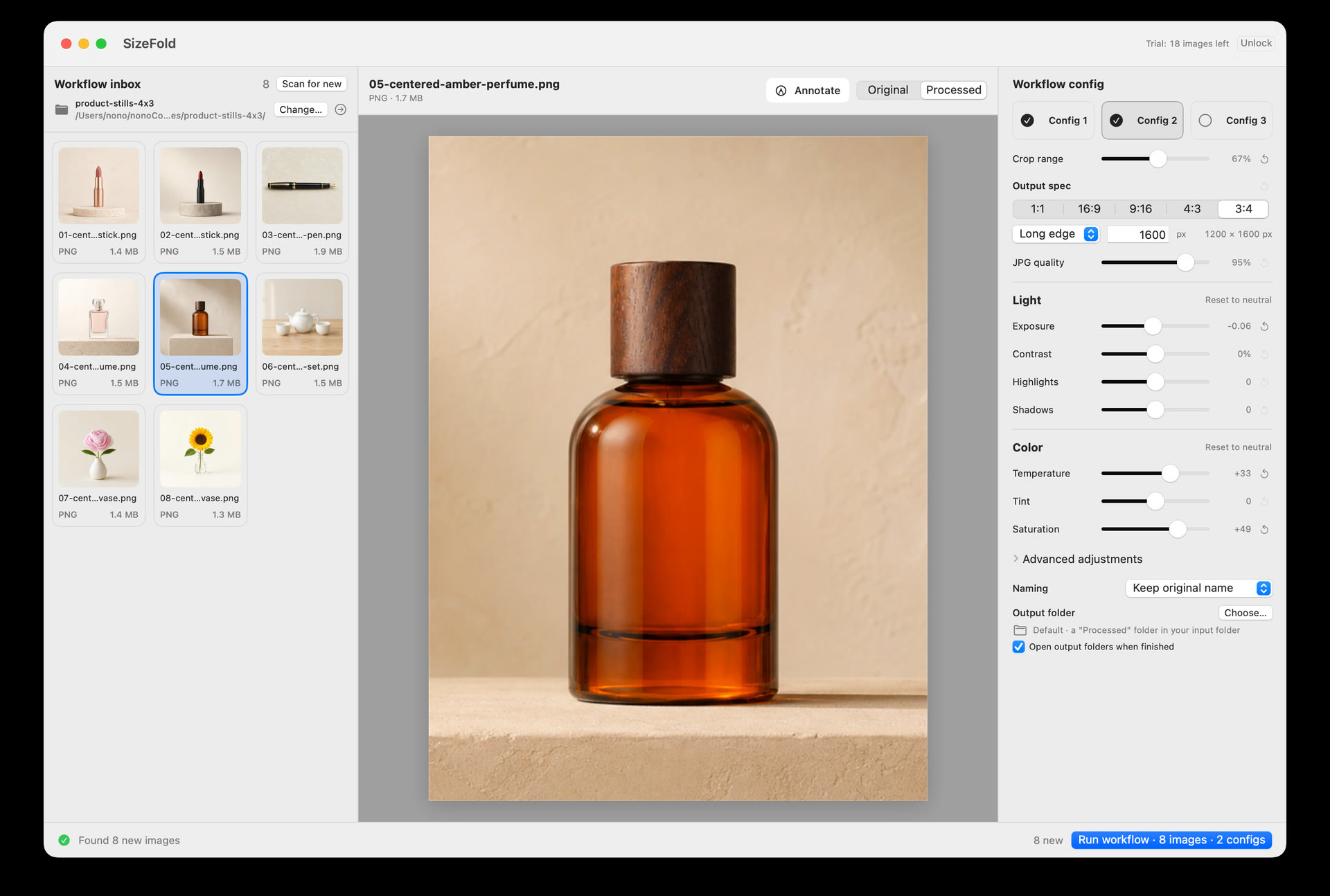
Input and review
Card imports and tethered captures already arrive in a directory. SizeFold makes that directory the batch boundary, so the operator does not need to select the same files again.
Choose one input directory. Its top-level JPG, PNG, HEIC, and TIFF files form the current batch.
Check thumbnails, file details, and a large preview. Arrow keys move through the batch without leaving the preview.
Hold the preview to see the untouched source. Release it to return to the current crop and color result.
Crop and image treatment
A prepared batch normally shares camera, lighting, and product placement. That consistency allows one crop and color recipe to work across the batch.
Create 1:1, 16:9, 9:16, 4:3, or 3:4 outputs using the image center in the current release.
Adjust exposure, contrast, highlights, shadows, temperature, tint, saturation, sharpening, and RGB channel compensation.
Set the long edge, short edge, width, or height and choose JPEG quality independently for every recipe.
Delivery
Different channels often require different proportions, dimensions, treatments, filenames, and destinations. One shared export setting cannot represent all of them.
Each recipe stores its own crop, dimensions, color settings, JPEG quality, filename rule, and output directory. Enable only the ones the job needs.
Keep source filenames or add a recipe-specific prefix with continuous numbering across batches.
Send ecommerce and social versions straight to their own folders in the same run.
Originals and failures
SizeFold does not treat a source as finished until every enabled recipe has produced its file.
An original moves to the Originals folder only after all enabled recipes finish for that source.
If a required output fails, incomplete products from that attempt are removed and the original remains in the input directory for retry.
Apple frameworks handle crop, color, resize, and JPEG generation on the Mac. SizeFold has no account or cloud photo service.
Mark up a preview with text, arrows, shapes, or drawing, then copy or export it for review. The marks are not written into the original or batch output.