Ecommerce images favor consistency
Marketplace and catalog images often use a square or portrait ratio, controlled dimensions, predictable filenames, and a neutral look that keeps the product accurate.
Batch resize and crop for multiple platforms
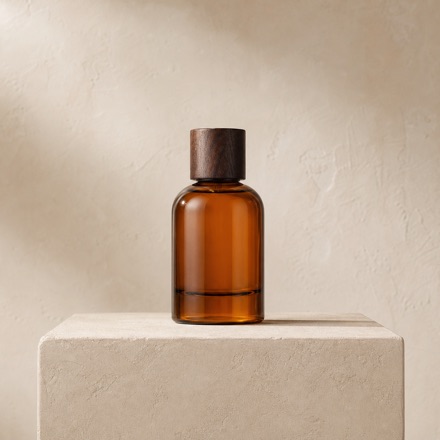
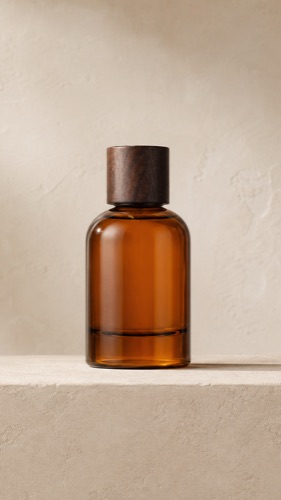
A product photo may need a square ecommerce file and a brighter vertical version for social media. Save each requirement as its own recipe and run them together.


Platform requirements
Each channel can ask for another ratio, pixel size, color treatment, filename, or destination. One export preset cannot describe all of them.
Marketplace and catalog images often use a square or portrait ratio, controlled dimensions, predictable filenames, and a neutral look that keeps the product accurate.
A product page, campaign module, or article may call for 4:3 or 16:9. Reopening every image to create the second format repeats the same mechanical work.
A 9:16 crop may also need stronger saturation and another output size. Save it as a separate recipe.
Up to three recipes
Enable the recipes the job needs. SizeFold renders each one directly from the original during the same run.
Set 1:1, 16:9, 9:16, 4:3, or 3:4 independently for each recipe.
Set dimensions by long edge, short edge, width, or height, plus JPEG quality.
Keep separate color adjustments and use source names or prefix-plus-sequence naming.
Send every recipe to its own destination without reorganizing the files afterward.
Before archiving
If a source needs three outputs and one fails, that source is still unfinished. SizeFold leaves it in the input folder for another attempt.
SizeFold does not resize an already exported derivative to make the next format. Each enabled result is generated from the preserved source image.
The source image is archived only after all enabled configurations create their required output.
If one required output fails, incomplete products from that attempt are removed and the original stays in the input directory for retry.
Common questions
SizeFold supports up to three independently enabled processing recipes in one workflow run.
Yes. Exposure, contrast, highlights, shadows, white balance, saturation, sharpening, and RGB adjustments are saved per recipe.
Yes. Every enabled recipe can write to its own output directory and use its own filename rule.
The current release accepts JPG, PNG, HEIC, and TIFF source images and generates JPEG outputs.
Save the delivery recipes and run them together from the original images.