One batch shares one setup
Photos from the session use the same lighting, camera, lens, focus, background, and product position. One crop and color recipe can work across the folder.
Product photo batch processing for Mac
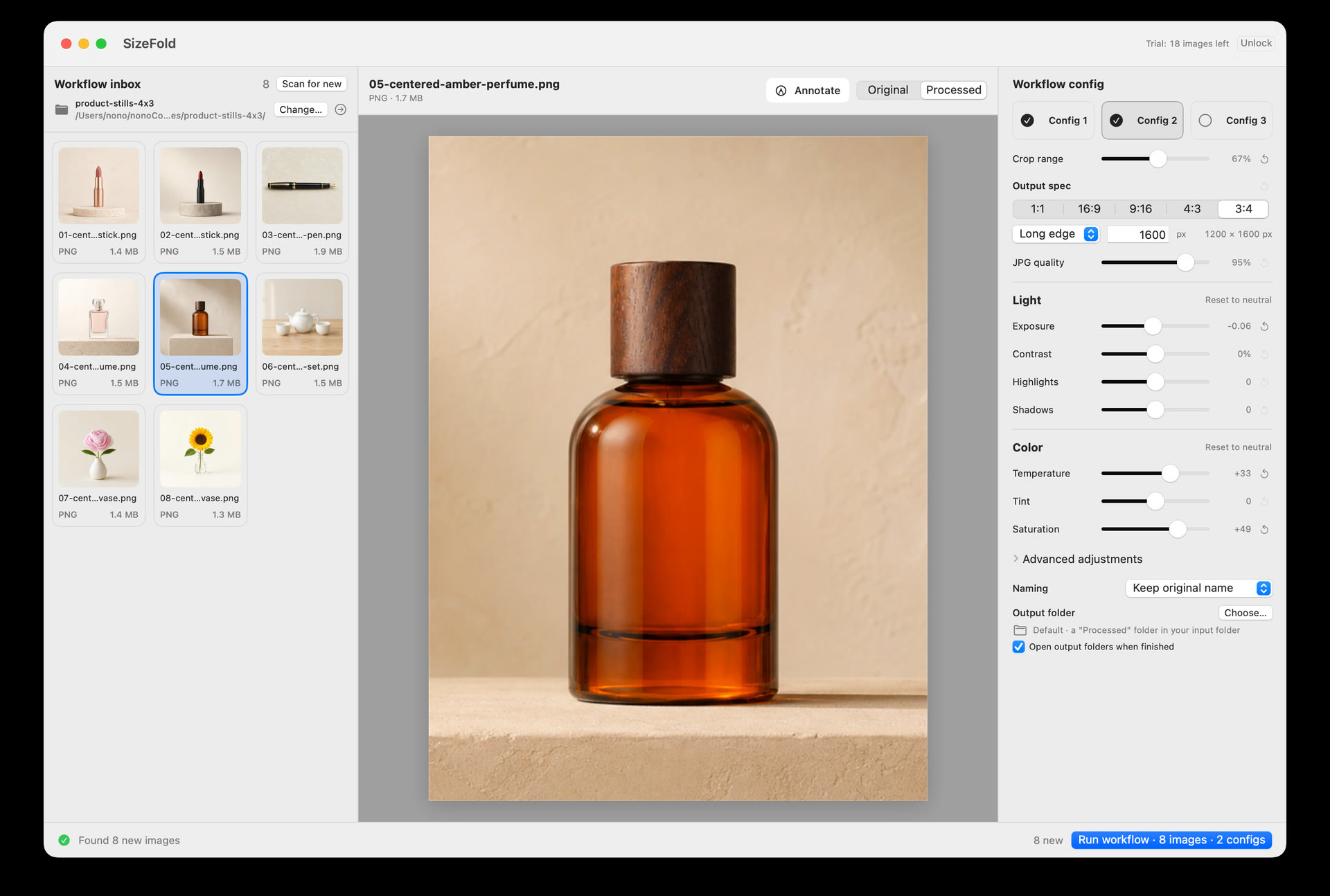
A studio batch usually comes from the same camera, lighting, background, and product setup. SizeFold applies the matching crop and color settings to the folder, writes the required versions, and archives each original after they succeed.
Before processing starts
The team sets up the location, lights, camera, product position, focus, and file storage before shooting. Those choices give the finished folder a consistent starting point.
Photos from the session use the same lighting, camera, lens, focus, background, and product position. One crop and color recipe can work across the folder.
A folder-wide crop and color recipe only makes sense when the photos share their shooting conditions. A studio batch normally does.
Card-based shoots are copied into a material folder. Tethering software writes straight to a chosen directory. Either folder can become the SizeFold input.
Choose the input
Use the camera-import folder, the tethered capture directory, or a separate inbox prepared for the job. Every supported top-level image becomes part of the batch.
Use the tethered capture output, the camera-import folder, or a fixed directory prepared for the current batch.
Browse the directory and compare the processed preview with the original before running it.
Run crop, color, size, JPEG, naming, and up to three independent output configurations together.
Route products to their configured folders and move each original only after all of its enabled outputs succeed.
Crop position
Center cropping covers the usual studio setup. If a whole batch is slightly off, the next update lets you choose its subject center once.
Professional product shoots normally place the subject near the center, so the standard workflow does not require per-image crop adjustments.
Select one subject center on a representative image. Every enabled crop ratio then calculates its own frame around that shared point.
The chosen point stays with the workflow and can be used again for the next batch from that setup.
Version note: workflow-level subject center is developed for the next update. The Mac App Store build currently under review uses the image center.
Common questions
No. It works directly with the input directory you choose and does not require a managed library or SizeFold account.
Yes. Enable up to three recipes, each with independent crop, dimensions, color settings, JPEG quality, filename rules, and output folder.
The source image stays in the input directory. SizeFold archives it only after all enabled outputs for that source succeed.
No. Crop, color, resize, and JPEG generation run locally on the Mac with native Apple frameworks.
The trial processes up to 50 source images with the complete app.